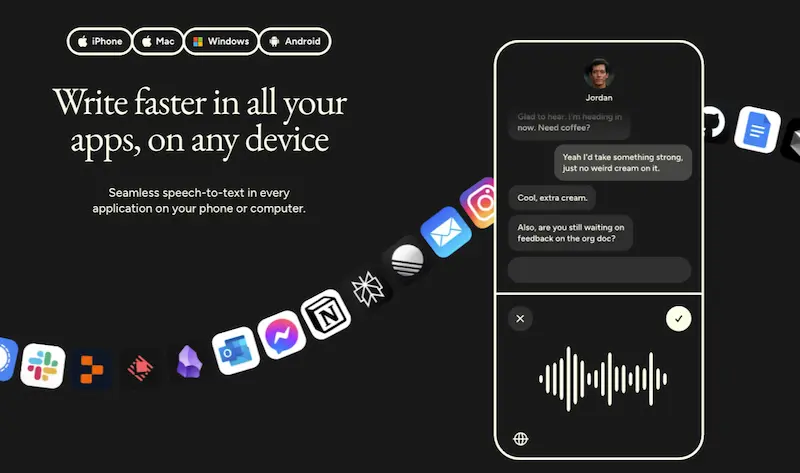
Wispr Flow is an AI dictation app that turns messy speech into clean, ready-to-send text in any text field on Mac, Windows, iPhone and Android. After more than a year of using it every day for Slack, AI prompts and one-handed typing on my phone, my verdict is simple: it is worth the $12 a month if you write a lot, and a waste if you only dictate now and then.
Wispr Flow review in 60 seconds
Wispr Flow is the tool I reach for every time I need to get words out faster than my hands can type. It listens, removes the filler and the false starts, adds punctuation and formatting, and pastes the result wherever your cursor is. The Insights dashboard usually puts me in the top 25% of its heaviest users, so this is not a review written after a week of testing.
Best for: people who write all day in Slack, email, docs and AI tools, bilingual users, parents and anyone who often has only one hand free.
Less ideal for: occasional dictation, offline-first setups, and teams that cannot approve an app with broad accessibility permissions without a formal review.
Overall: a very good product that only makes financial sense if it becomes a daily habit. Mine did.
My setup: how I actually use Wispr Flow every day
Most of my dictation happens in three places: Slack, AI chat windows and my iPhone. None of them is what Wispr shows in its demos, which are usually a developer in a quiet office, and that is exactly why I think my experience is useful.
Slack is the big one. I run growth for a company with teams in several countries, so a large part of my day is written conversation. Talking a Slack message instead of typing it lets me answer faster and, more importantly, answer in full sentences instead of the clipped shorthand you fall into when you type on the go.
The second place is AI tools, and this is where Flow changed how I work. I often have two or three AI assistants running at once. While one is working through a task, I dictate the next request to another, and then jump back to a Slack thread while both are busy. That kind of multitasking is almost impossible if every request has to be typed. Speaking a prompt takes a fraction of the time, and the clean-up means the prompt arrives already structured, not as a stream of “um, and also”.
The third place is my phone, and it is the one I did not expect. I have two small children. A lot of my day happens with one hand pushing a pram or holding a baby, which leaves exactly zero hands for a keyboard. Flow on the iPhone keyboard means I can still reply to the team or capture an idea by speaking. It is not a nice-to-have in those moments. It is the only way the message gets sent.
If your day looks anything like that, mixed apps, mixed languages, hands not always free, keep reading. If you write two emails a day in a quiet room, you can probably stop here and stick with the free plan or your operating system’s dictation.
What Wispr Flow is, in one minute
Standard dictation turns speech into literal text, including the “ehm”, the repeated words and the sentence you abandoned halfway. Wispr Flow adds an AI layer on top of the transcription. It cleans up the speech, punctuates it, capitalizes it, formats lists, applies a tone based on the app you are in, learns your vocabulary and can edit existing text with voice commands.
It works in any text field rather than inside its own app, which is the real difference from most dictation tools. You press a key (or a mouse button, or use hands-free mode), speak, release, and the text appears in Gmail, Slack, Notion, WhatsApp, Cursor, a browser form or wherever your cursor was. Settings, dictionary and snippets sync across desktop and mobile. That “works everywhere” design is what turns dictation from a novelty into a habit.
Wispr Flow features that matter in daily use
Wispr Flow has a long feature list. After a year, these are the ones that actually earn the subscription for me, roughly in order of how much I would miss them.
Self-correction cleanup. This is the feature that made me choose Flow over the alternatives. When I speak, I correct myself constantly. If I say “we launched this two weeks ago… no, actually, more than a month ago”, Flow understands that the second part replaces the first and writes only “we launched this more than a month ago”. Native dictation writes both. Cheaper tools write both. Flow gets it right so consistently that I no longer think about it, and that is the highest compliment I can pay a productivity tool.
Works in every app. Covered above, but it deserves repeating because it is the reason the habit sticks. There is no separate window to open and no copy-paste step in normal use. The clipboard-and-paste mechanism does have edge cases (some terminals, remote desktop sessions and WSL may need a manual paste shortcut, and Wispr documents this openly), but for Slack, browsers, email and AI chat windows I have never had to think about it.
Personal dictionary. You add names, brands and jargon once, and Flow stops mangling them. Now you can star important words and the dictionary ranks them by how often you use them. This matters more the more specialized your vocabulary is, and I cover its limits in the accuracy section below.
Snippets. Say a short trigger, get a full block of text. Now snippets support rich text (bold, links, lists), which makes them useful for recurring status updates, meeting agendas and the prompts you send to AI tools every day.
Auto Cleanup levels and Styles. Now you can choose how aggressively Flow rewrites what you say, from None to High. Styles adapt tone to the app: more formal in email, more casual in chat. Together they solve the main complaint people have about AI dictation, which is that it sometimes “over-edits” your words.
Hands-free and whisper-friendly. You can dictate without holding a key for up to 20 minutes (up from 5 earlier this year), and the recognition handles a whisper. More on that in the next section, because it is where my use case gets unusual.
Command Mode. A Pro feature that lets you edit existing text by voice: rephrase, shorten, make it more professional. It is the clearest “more than dictation” feature in the product, and the one to look at if you revise as much as you draft.
I have deliberately left coding out of this list. Wispr Flow does have code-aware behavior, developer terminology and integrations with Cursor, VS Code and Windsurf, and other reviewers who live in an IDE cover that better than I can. My use is prose, prompts and messages, and for that the features above are the ones that count.
Accuracy in real life: whispering, background voices and Spanish/English
Accuracy numbers in reviews are usually measured in a quiet room by someone speaking clearly in English. My conditions are the opposite, and Flow copes better than I expected.
Whispering. I regularly dictate with a sleeping baby in my arms, which means whispering. Flow understands whispered speech reliably, in both Spanish and English. I would not have believed that before I tried it. It is the difference between capturing a thought and losing it because you did not want to wake the child.
Other people talking. My kids call me while I am dictating. Colleagues talk near me. Flow discards the voice that is not mine and transcribes only what I said. I would not call it perfect isolation, but it is good enough that I dictate around my family without worrying about what ends up in the message.
Switching between Spanish and English. I write in both languages every day, sometimes in the same conversation. Flow handles both without me changing any setting, and since the beggining of the year there is also a one-click language picker in the Flow bar if you want to force a language. For a bilingual user this is the deal-breaker feature. Plenty of dictation tools claim multilingual support; very few handle a real bilingual workflow without constant fiddling.
Where it fails. Proper names. Brands, product names and people that are not household names get mangled, especially when the pronunciation differs between Spanish and English. The dictionary fixes the ones you add, but you have to add them, and I still catch one or two per week that slipped through. If your job involves a lot of niche brand names, budget five minutes to seed the dictionary on day one.
Editing afterwards. Beyond the proper-name issue, the output rarely needs a fix. A Slack message or an AI prompt normally goes out as dictated. If you are writing something longer or more formal, a quick read-through for names is enough, which is a fraction of the clean-up raw dictation needs.
What’s new in Wispr Flow
This year Wispr has shipped a lot since then, and some of it changes the value calculation. This is what matters, based on Wispr’s public changelog.
Notetaker. Wispr Flow now records meetings, identifies speakers, produces summaries and lets you search across your meeting history. It is a direct move into Granola and Otter territory, as TechCrunch reported, and since September you can import Otter.ai transcripts with speaker names preserved. If you were paying for a separate meeting notetaker, this could replace it. It also explains the new “Growth” plan bundling dictation and meetings for teams.
Auto Cleanup levels and Transforms. Four levels of rewriting, plus a beta feature that runs your own custom prompts on dictated text. If you disliked how much AI dictation “improved” your words, you can now turn it down.
Scratchpad. A floating notepad you open with a shortcut, useful for dictating a longer thought before deciding where it goes.
Audio playback. You can listen to the original audio of any dictation from the last 14 days. Useful when a transcription looks wrong and you want to check what you actually said.
Longer dictations, mouse triggers, better dictionary. Sessions up to 20 minutes, dictation bound to a spare mouse button, and starred dictionary words.
Desktop localized in Spanish, German, Italian and Portuguese. The app interface itself, not just the recognition.
Team features moving down to Pro. Team leaderboards, shared dictionaries across departments and update deferral during active work all landed between July and September.
The takeaway: the product you get today is meaningfully bigger than the one I reviewed in April, and the two additions that change the buying decision are the Notetaker (a second product for the same money) and the cleanup levels (fixing the over-editing complaint).
Wispr Flow privacy: what changed and what to switch off
Privacy is the part of this review most readers care about, and it is where Wispr Flow has the most history to live down.
On the positive side, the current position is strong for a dictation product. Wispr offers a Privacy Mode with zero data retention, HIPAA support through a Business Associate Agreement, SOC 2 Type II and ISO 27001 certifications, SSO and admin controls on team plans, encryption, and it blocks pasting into password fields on Mac. Now you can also choose how long transcripts are stored locally, or have them deleted automatically. Model training on your data is controlled in settings. The certifications and training controls are on their privacy page; Privacy Mode and retention settings are documented in the help center.
On the cautious side, Flow needs to see a lot to do its job. Context Awareness reads which app you are in to adapt tone and formatting, which on Mac relies on accessibility permissions. The Notetaker records meetings, which raises its own consent questions. And processing happens in the cloud, not on your device. Earlier reviews and user threads flagged background behavior, auto-start and unclear disclosure, and while the current documentation is far more explicit, that history is why security teams tend to ask questions.
What I do, and what I would suggest to anyone in a regulated or sensitive environment: turn on Privacy Mode, check the model-training toggle, decide consciously whether you want Context Awareness on, and if you are on a team, have IT review the Notetaker’s organization-wide controls before anyone records a call. For an individual dictating Slack messages and prompts, the defaults plus Privacy Mode are fine. For legal, healthcare or finance, treat it as a product to verify, not to install and forget.
Wispr Flow pricing: is Pro worth it?
Wispr Flow is freemium. These are the current plans:
| Plan | Price | What you get | Main limitation |
|---|---|---|---|
| Free | $0 | Dictation on Mac, Windows, iPhone and Android, dictionary, snippets, 100+ languages | 2,000 words/week on desktop, 1,000/week on iPhone, unlimited on Android |
| Pro | $15/month, or $12/month billed annually | Unlimited dictation, Command Mode, advanced models, early access to features, more meetings kept for longer | Only pays off with daily use |
| Growth / Enterprise | From $23/month, or $18/month annually | Everything in Pro plus bundled Notetaker, admin controls, SSO, compliance features | Aimed at teams, formal buying process |
Students and educators with an education email get 50% off Pro, and there is a nonprofit discount.
Is Pro worth it? For me, clearly yes. 2,000 words a week on the free plan is roughly one busy morning of Slack for me, so the cap would hit by Tuesday. At $12 a month, Flow costs less than a single hour of my time and saves me far more than that every week, before counting the messages that would simply not get sent when I only have one hand free.
If you dictate a few messages a day, the free plan is enough, and Android users get it unlimited. If you are between the two, the free tier is a real trial: use it for two weeks and see whether you hit the cap. Hitting the cap is the signal that Pro will pay for itself.
Pros and cons
Pros
- Cleans up self-corrections mid-sentence better than anything else I have tried.
- Works in every app I use, on desktop and on iPhone, with settings synced.
- Handles Spanish and English in the same session without changing settings.
- Understands whispering and ignores other voices most of the time.
- Dictionary and snippets remove the recurring errors and the repetitive typing.
- Adjustable cleanup levels stop it from over-editing your words.
- The Notetaker turns one subscription into two products.
- Privacy controls are much more mature than the product’s reputation suggests.
Cons
- Proper names and lesser-known brands still get mangled until you add them to the dictionary.
- The best experience is behind a subscription, and month-to-month is $15.
- Needs accessibility permissions and runs in the background, which some IT teams will question.
- Cloud processing, no offline mode.
- Some terminals, remote desktops and WSL need a manual paste.
- Overkill if you only dictate occasionally.
Wispr Flow alternatives I’d consider instead
I did not pick Flow blind. Before settling on it I used the built-in dictation on my phone and laptop and tried Superwhisper, one of the best-known Mac alternatives.
Built-in dictation (Apple, Windows). Free and already installed. Fine for a quick sentence. It writes exactly what you say, false starts included, does not learn your vocabulary, and does not adapt tone to the app. If you dictate more than a few times a day, the clean-up work eats the time you saved.
Superwhisper. A strong Mac app with local processing, which is a real advantage if privacy or offline use is your priority. In my use, Flow won on the thing I care about most: how it handles the way I actually talk, with corrections mid-sentence, and how it behaves on the phone. If your priority is on-device processing rather than cleanup quality, Superwhisper deserves a look.
Letterly, Spokenly and other competitors. Several of them publish “Wispr Flow reviews” that end by recommending their own product, so read those with that in mind. Letterly leans towards turning voice into structured documents rather than dictating into any field.
Granola or Otter for meetings. Before you needed one of these next to Flow. Now the Notetaker covers a lot of that ground inside the same subscription.
Final verdict: who should pay for Wispr Flow
Pay for Wispr Flow if writing is a big part of your day and it happens in many places: Slack, email, docs, AI tools, your phone. It removes the friction between thinking and sending, and after a year I would not go back to typing everything.
Pay for it especially if you work in two languages, if you talk the way most people talk (with corrections and half-finished sentences), or if you often have only one hand free. Those three cases are where Flow is not just faster but where it does things the alternatives simply do not.
Skip it if you dictate occasionally, want on-device processing, or work somewhere that cannot approve background apps with broad permissions. Start on the free plan either way. The 2,000-word weekly cap is the honest test: if you hit it, you are the customer this product was built for.
Wispr Flow FAQ
Is Wispr Flow better than built-in dictation?
For anyone who dictates regularly, yes. Built-in dictation transcribes literally. Wispr Flow removes filler and false starts, punctuates, formats, learns your vocabulary and works the same way across every app and device. For a sentence a day the built-in tool is enough; for anything more, Flow saves real editing time.
Does Wispr Flow work in Spanish?
Yes. I dictate in Spanish and English every day, often in the same conversation, and Flow handles both without changing settings. There is also a language picker in the Flow bar to force a language, and now the desktop app interface itself is available in Spanish.
Can Wispr Flow understand whispering?
In my experience, yes, reliably, in both Spanish and English. I regularly dictate whispering with a sleeping child in my arms. Wispr also documents whisper-friendly use in its help center.
Does Wispr Flow work on Windows and Android?
Yes. Wispr Flow is available on Mac, Windows, iPhone and Android. Some features and controls vary by platform, and the free plan is unlimited on Android but capped at 2,000 words a week on desktop and 1,000 on iPhone.
Is Wispr Flow safe for sensitive work?
It has a stronger security posture than most dictation tools: Privacy Mode with zero retention, HIPAA support via BAA, SOC 2 Type II and ISO 27001, and local storage controls. Processing is still cloud-based and the app reads which application you are in. Individuals should turn on Privacy Mode and check the training toggle; regulated teams should involve IT before rollout, especially for the Notetaker.
Is the free plan enough to test Wispr Flow properly?
It is enough to learn whether the habit sticks. The 2,000-word weekly cap on desktop is low for anyone who writes for a living, and hitting it is the clearest sign Pro will pay for itself.
Can developers use Wispr Flow for coding?
Yes, with the right expectations. Flow has code-aware vocabulary and integrations with Cursor, VS Code and Windsurf, and it is strongest for prompts, comments, commit messages and documentation rather than dictating raw code. Some terminal and remote environments need a manual paste.
Who gets the most value from Wispr Flow?
People who think faster than they type and produce a lot of text across many apps: founders, marketers, operators, sales and support teams, consultants, writers, and anyone working with AI tools all day. Bilingual users and parents with one hand free get more out of it than most.
Disclosure: the Wispr Flow links in this review are referral links. If you sign up through them I may earn a commission at no cost to you. It has not changed what I wrote.